Image

Title (title extra extra large)
Payment Process
Here’s your step-by-step guide on paying for a module online.
Column
Ref:column (image)
Column
Ref:column (content)
Image

Title (title large)
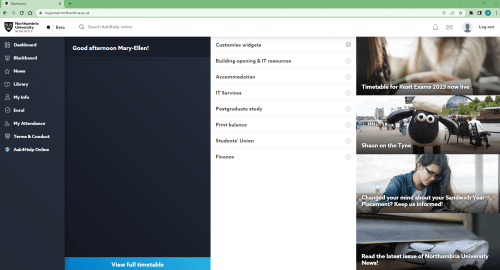
1. Log in to the Student Portal using the Chrome browser
Content (color gray 1)
Column
Ref:column (content)
Column
Ref:column (image)
Image
Title (title large)
2. Click MyInfo on the left-hand side
Content (color gray 1)
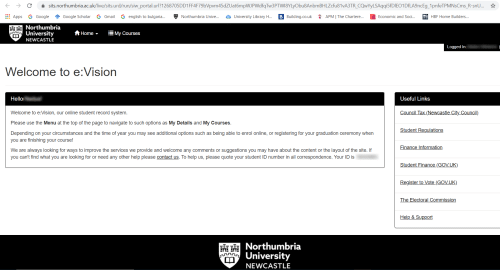
It will open a new tab, SITS e:Vision
Column
Ref:column (image)
Column
Ref:column (content)
Image
Title (title large)
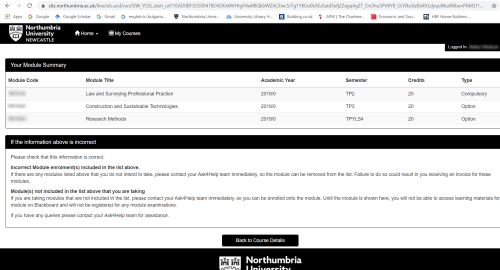
3. Click Menu at the top of the screen and select “My Courses”
Column
Ref:column (content)
Column
Ref:column (image)
Image
Title (title large)
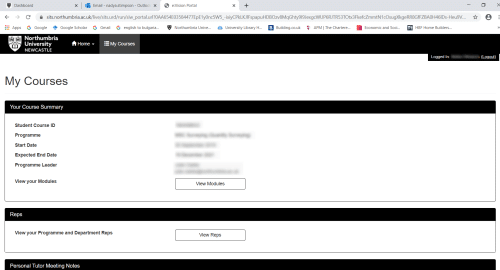
4. Scroll down to Module Selection and Payment
Column
Ref:column (image)
Column
Ref:column (content)
Image
Title (title large)